
GROWTH HUB
Client Dashboard
How to UPDATE YOUR BUSINESS HOURS ON GOOGLE
By IP Marketing Solutions (2026)
Keeping your business hours updated on your Google Business Profile is one of the easiest ways to improve customer trust and avoid confusion online.
When customers search for your business on Google or Google Maps, your hours are often one of the first things they see. Incorrect hours can lead to missed calls, frustrated customers, negative reviews, or lost business.
This guide walks you through how to update your regular business hours and holiday hours using your Google Business Profile in 2026.
Step 1: Open Google Business Profile
Start by visiting:
Log into the Google account connected to your business profile.
If your business profile is connected correctly, you should see your business dashboard appear after logging in.
Step 2: Select Your Business
If you manage multiple businesses, choose the correct profile from the list.
Once selected, Google will open your Business Profile management area.
You may see:
• your business name
• review count
• performance insights
• editing tools
• profile management options
Step 3: Open the Edit Profile Section
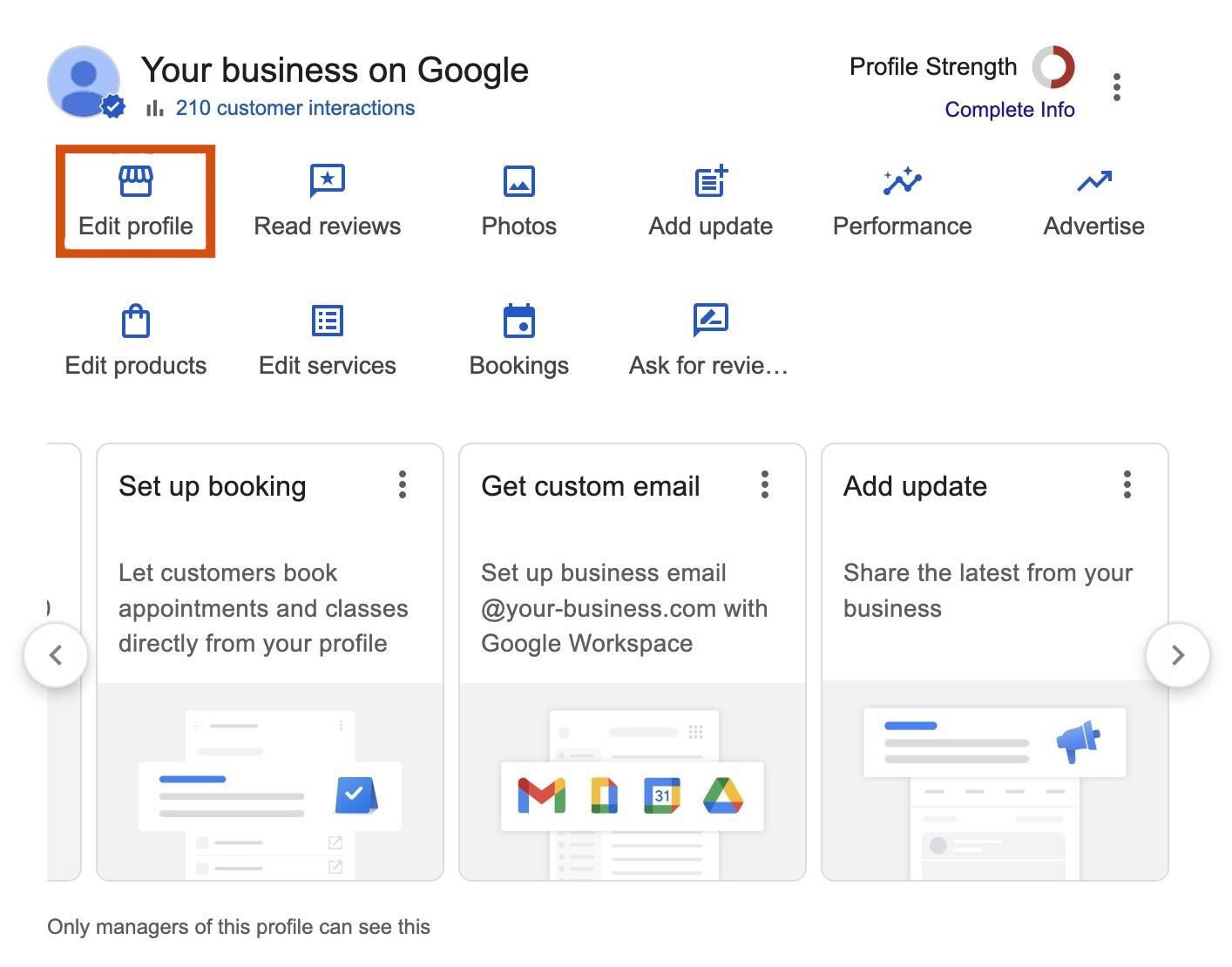
Inside your Business Profile dashboard, locate and click Edit Profile.
Depending on Google's current layout, this may also appear as:
• Edit Business Information
• Edit Services
• Profile Settings
Google updates their interface frequently, so wording may vary slightly over time.
Step 4: Open the Hours Section
Inside the profile editor, locate the section labeled Hours.
Click the pencil or edit icon next to your business hours.
This will allow you to:
• update regular business hours
• add split hours
• close specific days
• set holiday hours
• temporarily adjust hours when needed
Step 5: Update Your Business Hours
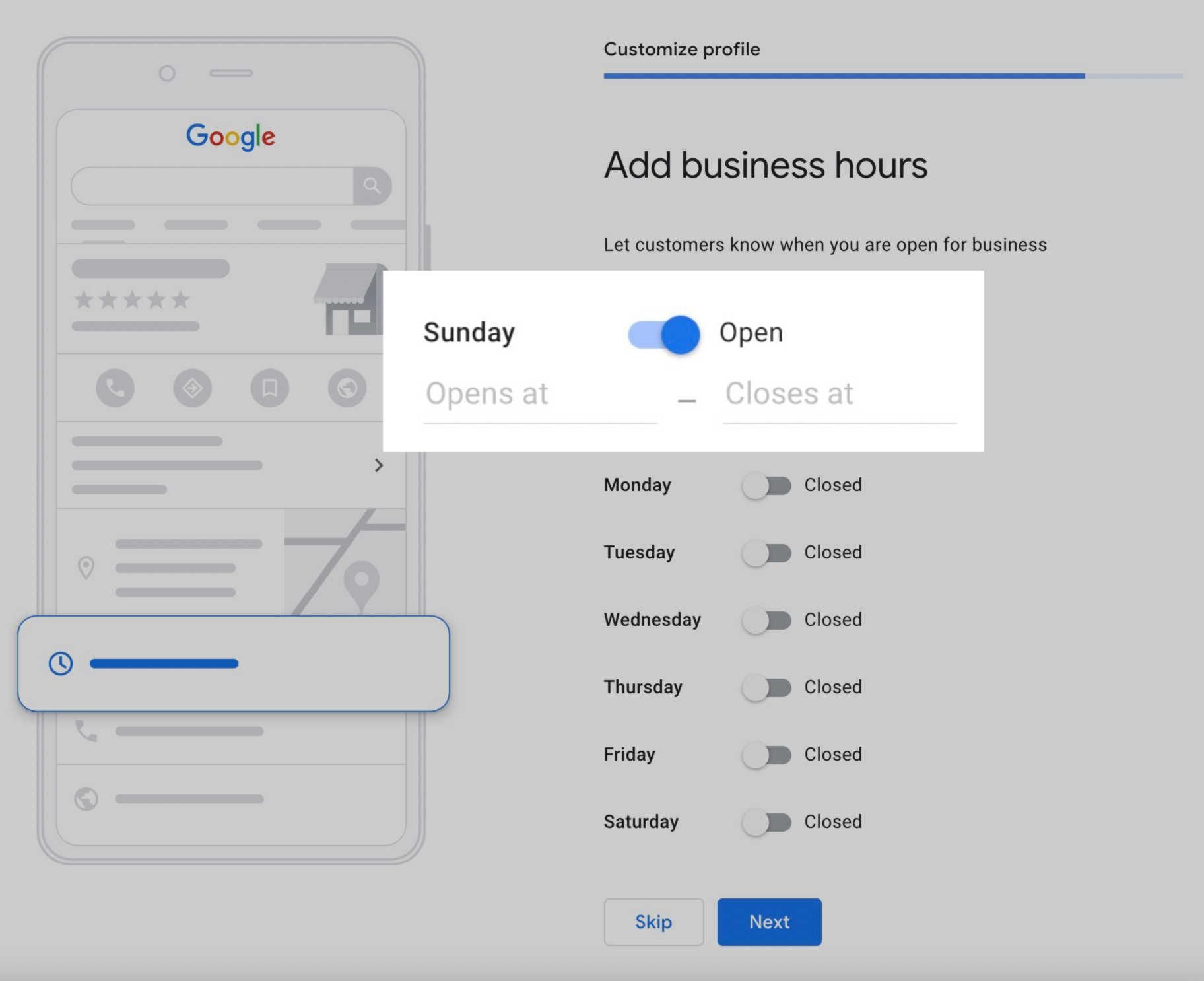
Enter the correct opening and closing times for each day of the week.
If your business is closed on certain days, you can mark those days as Closed.
If your business closes for lunch or operates with split schedules, some profiles may also allow:
• multiple opening periods
• temporary adjustments
• seasonal scheduling
Double-check your hours carefully before saving.
Incorrect hours can confuse customers and may negatively impact trust or reviews.
Step 6: Add Holiday Hours (Recommended)
Google allows businesses to add special holiday hours separately from regular operating hours.
This is strongly recommended during:
• holidays
• vacations
• seasonal closures
• special events
Adding holiday hours helps prevent customers from arriving when your business is unexpectedly closed.
Look for:
Special Hours
or
Holiday Hours
inside the Hours section.
Step 7: Save Your Changes
After reviewing your updates, click Save.
Google may take a few minutes to process changes before they appear publicly on Google Search and Maps.
In some cases, Google may review major profile changes before publishing them.
Why Keeping Hours Updated Matters
Updated business hours help:
• improve customer trust
• reduce confusion
• prevent negative experiences
• improve local SEO accuracy
• support your Google Business Profile health
Many businesses accidentally lose leads simply because customers believe they are closed when they are actually open.
Even small profile updates help signal activity and accuracy to Google over time.
Common Mistakes to Avoid
One of the most common issues businesses face is forgetting to update holiday hours. Customers often rely heavily on Google during holidays and weekends, so outdated information can quickly create frustration.
Another common mistake is using inconsistent hours across different platforms. Your website, Google profile, Facebook page, and directory listings should all match whenever possible.
It’s also important to periodically review your profile even if your hours rarely change. Google occasionally allows public edits or automated suggestions that may accidentally alter your information.
Final Thoughts
Your Google Business Profile is often the first impression customers have of your business online.
Keeping your hours accurate helps customers trust your business, improves user experience, and supports stronger local visibility over time.
Small updates like this may seem simple, but they play an important role in maintaining a healthy online presence.
Need Help?
If you need assistance updating your Google Business Profile or managing your online business information, the IP Marketing Solutions team is here to help.
You can contact us directly through your Growth Hub support page for additional support and guidance.
QUICK ACCESS
Need Help Finding Something?
Our team is here to help with guides, resources, account questions, and marketing support whenever you need it.
UH-OH!
YOU DON'T HAVE PERMISSION TO VIEW THIS PAGE!
You appear to be signed in as a guest, and this is a client-only resource page. If you believe this is a mistake, please contact us. Otherwise, you can go back to the guest dashboard by clicking here.
Want to See How Your Business is Performing Online?
Request a free SEO analysis from IP Marketing Solutions and receive actionable insights into your website visibility, search performance, and online presence.
No obligation. Just valuable insight.